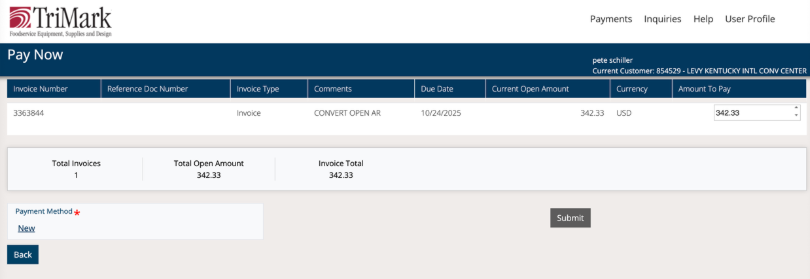
New User Registration for SnapPay(End Users)
-
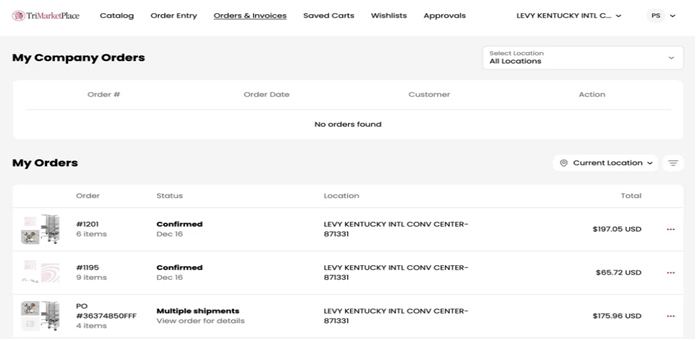
Once logged into Shopify, go to Orders & Invoices and click on the order to pay.
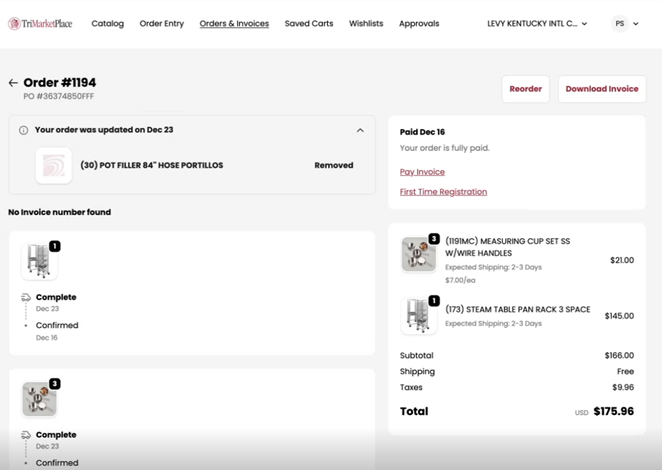
- Click on First Time Registration link to open SnapPay.
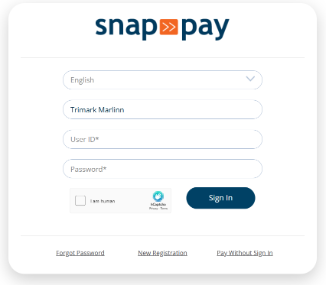
- Check the “I am human” box and click the “New Registration” link.
- Complete the registration form by entering all required details. IMPORTANT: Enter your Customer ID (provided by TriMark) in the Comments field for identification.
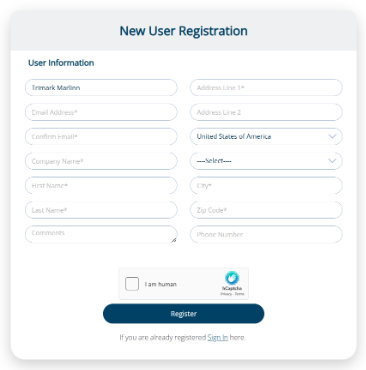
- Submit the registration. Result: An email notification is automatically sent to the SnapPay administrator for review.
Open Internet Explorer and navigate to the SnapPay URL:
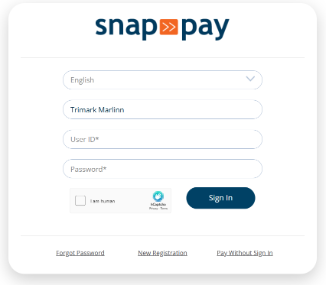
- Enter Account Number or Account ID. Check the “I am human” box and click the “New Registration” link.
- Complete the registration form by entering all required details.
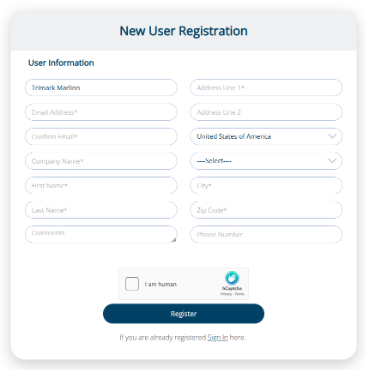
- Submit the registration. Result: An email notification is automatically sent to the SnapPay administrator for review
SnapPay Confirmation (End Users)
- Once you have filled out the form and the email is approved by Trimark, you will receive an email like below.
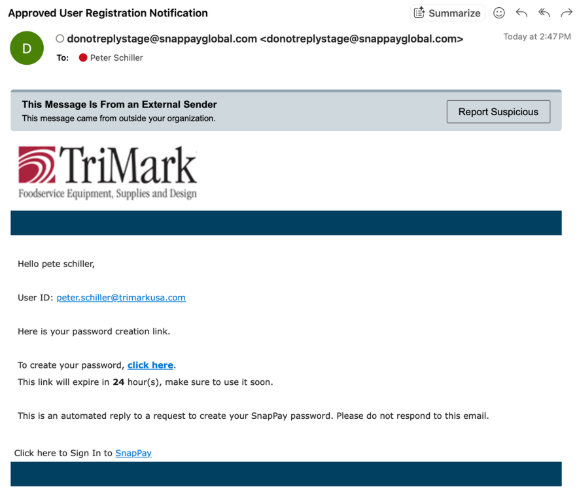
- Create a password
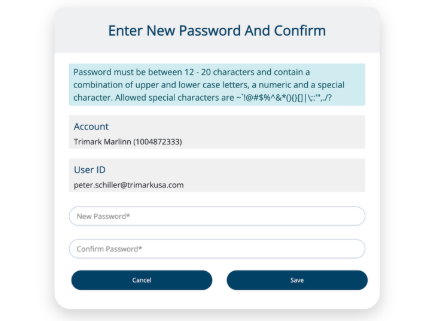
- Once created, you can log in; USER ID is your email (check email).
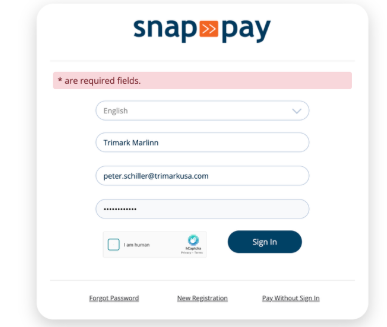
- You will be asked to create security questions.

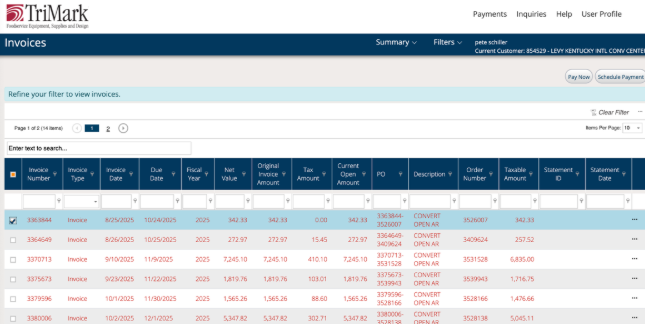
- Once created, you have access to the invoice pay portal. Select Payments to view all invoices.
- To pay an invoice, click the check box before the invoice.
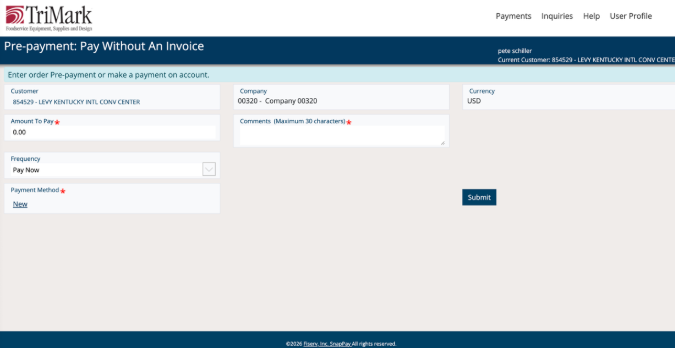
- To pay the invoice, enter your credit card information by clicking Payment Method.